
Two external SSDs can look similar but offer very different transfer speeds. The connection they use is one reason.
You may see terms such as USB 3.2 Gen 1, USB 3.2 Gen 2 and USB 3.2 Gen 2×2 in product specifications. The names are confusing, but understanding the difference can help you avoid buying a fast SSD that your computer cannot use at its full speed.
Here is what each version means and what to check before choosing an external SSD.
What Is USB 3.2?
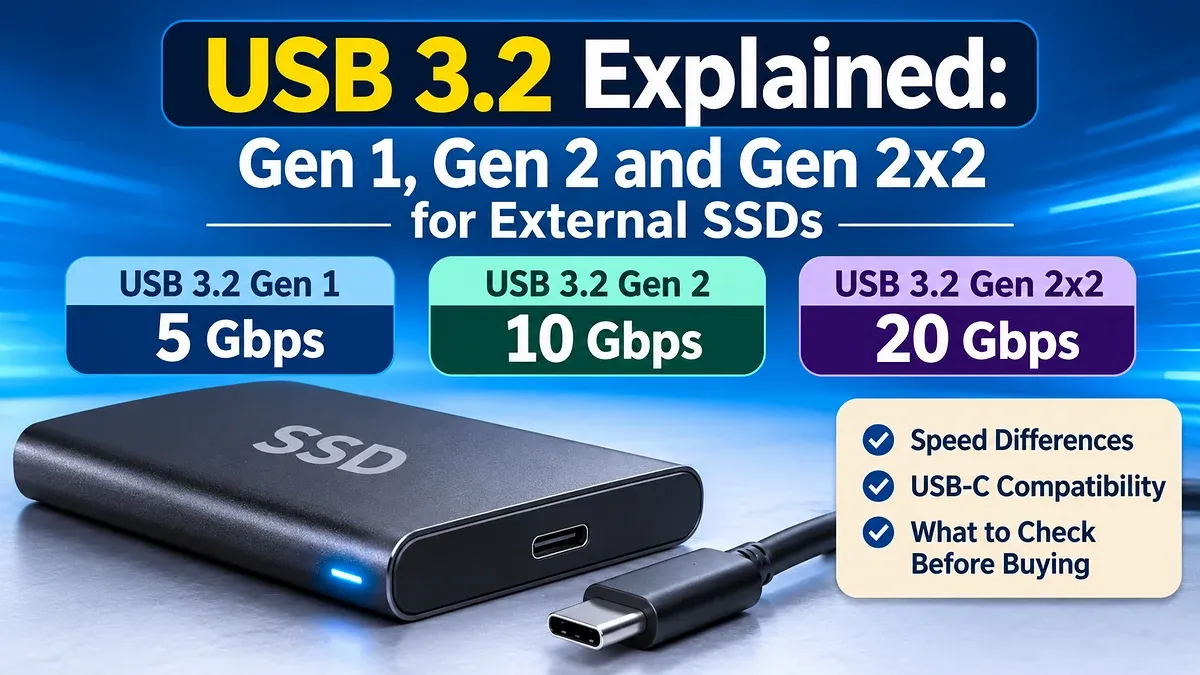
USB 3.2 is a USB data-transfer specification. It defines how quickly compatible devices can communicate, with three commonly referenced speed levels: 5 Gbps, 10 Gbps and 20 Gbps.
The important distinction is that USB 3.2 alone does not tell you which speed a product supports. You need to check the generation listed in the specifications.
USB 3.2 Gen 1 vs Gen 2 vs Gen 2×2
USB standard | Maximum signalling rate | What it means for an external SSD |
USB 3.2 Gen 1 | 5 Gbps | Suitable for everyday storage and file transfers |
USB 3.2 Gen 2 | 10 Gbps | A faster connection for regular transfers of large files |
USB 3.2 Gen 2×2 | 20 Gbps | Higher bandwidth for compatible drives and computers |
These are interface rates, not guaranteed file-copy speeds. The theoretical byte-rate equivalents are approximately 625 MB/s, 1,250 MB/s and 2,500 MB/s respectively, before protocol overhead. Actual SSD performance is lower and varies by device.
1. USB 3.2 Gen 1: 5 Gbps
USB 3.2 Gen 1 has a maximum signalling rate of 5 Gbps. Older product listings may describe the same speed level as USB 3.0 or USB 3.1 Gen 1.
For everyday use, this connection can be suitable for moving documents, photos, videos and other files. It can also work well with an external SSD when you do not regularly transfer very large amounts of data.
However, the connection can limit a drive that is capable of faster transfers.
Consider it if: You want external storage for routine file transfers, backups and general use.
2. USB 3.2 Gen 2: 10 Gbps
USB 3.2 Gen 2 doubles the maximum signalling rate to 10 Gbps. Older listings may call it USB 3.1 Gen 2.
This can be a useful step up for people who frequently transfer large video files, photo libraries or work projects. A compatible SSD can take greater advantage of the available bandwidth than it could through a 5 Gbps connection.
The connection speed is still only one part of the equation. The SSD itself must be capable of delivering the performance, and the computer and cable must support the same speed.
Consider it if: You regularly move large files and want a faster connection for an external SSD.
3. USB 3.2 Gen 2×2: 20 Gbps
USB 3.2 Gen 2×2 supports a maximum signalling rate of 20 Gbps by using two 10 Gbps lanes. It can provide more bandwidth than Gen 1 or Gen 2, but the entire connection must support it.
Do not assume your laptop supports Gen 2×2 simply because it has a USB-C port. Check the computer’s specifications for explicit support, along with the external SSD and cable.
Consider it if: You regularly handle large files and have a computer, SSD and compatible cable that all support 20 Gbps.
USB-C and USB 3.2 Are Not the Same Thing
This is one of the most important details to understand before buying an external SSD.
USB-C describes the connector. USB 3.2 describes data-transfer capability.
A USB-C port does not automatically support 10 Gbps or 20 Gbps. Depending on the device, a USB-C connection could support a slower USB standard or a faster one.
Similarly, a cable may have USB-C connectors at both ends without supporting every possible USB data rate.
Before buying an SSD, check the computer manufacturer’s specifications to confirm the speed supported by the specific port you intend to use. Do the same for the cable if it is not included with the drive or its capabilities are unclear.
Why Your External SSD May Run Slower Than Advertised
Suppose you buy an external SSD that supports 10 Gbps but connect it to a computer port that supports only 5 Gbps.
The drive will not reach its maximum performance through that connection. The same limitation can occur if the cable does not support the required speed.
Other factors can also affect transfer rates, including the SSD’s own performance, the type and size of files being copied, the computer’s hardware and the workload.
Keep these three parts in mind:
- Computer: Does the specific port support the required speed?
- External SSD: What interface and maximum read/write speeds does the drive support?
- Cable: Does it support the same data-transfer rate?
For the full speed to be available, all three must be compatible.
What Should You Check Before Buying an External SSD?
1. Look beyond the words “USB 3.2”
Check whether the listing says Gen 1, Gen 2 or Gen 2×2. If it only says USB 3.2, the information may not be detailed enough to establish the maximum connection speed.
2. Check the advertised SSD speed
Look for the manufacturer’s stated sequential read and write speeds, usually given in MB/s. These figures describe the drive’s performance under specified conditions, not the guaranteed speed of every file transfer.
3. Check your computer’s port
Consult the computer manufacturer’s specifications or manual. Do not rely on the shape of the USB port alone.
4. Check cable compatibility
If the SSD includes a cable, confirm that its specifications support the drive’s required data rate. If you plan to use another cable, check that one too.
5. Decide whether you need the extra speed
If you mainly store files or make occasional backups, a 20 Gbps connection may offer little practical benefit over a suitable slower connection.
If you work with large files frequently, a faster interface may be worth considering, provided your computer and SSD can take advantage of it.
Which USB 3.2 Version Should You Choose?
- For everyday storage: A 5 Gbps connection may be sufficient for routine file transfers and backups.
- For frequent large-file transfers: A 10 Gbps connection is worth considering, especially if the SSD advertises read/write speeds that benefit from the extra bandwidth.
- For demanding workflows: A 20 Gbps connection makes sense when both the computer and external SSD support Gen 2×2 and you regularly need the additional bandwidth.
Do not choose solely by the largest number. A well-matched 10 Gbps drive may be a better purchase than a faster-rated model whose extra bandwidth your computer cannot use.
Final Word
USB 3.2 Gen 1, Gen 2 and Gen 2×2 differ in their maximum signalling rates: 5, 10 and 20 Gbps. Knowing which version your computer supports can help you choose an external SSD that matches your needs.
Check the specific port, SSD and cable before buying. The fastest advertised connection will not deliver its full potential if another part of the setup limits it.