
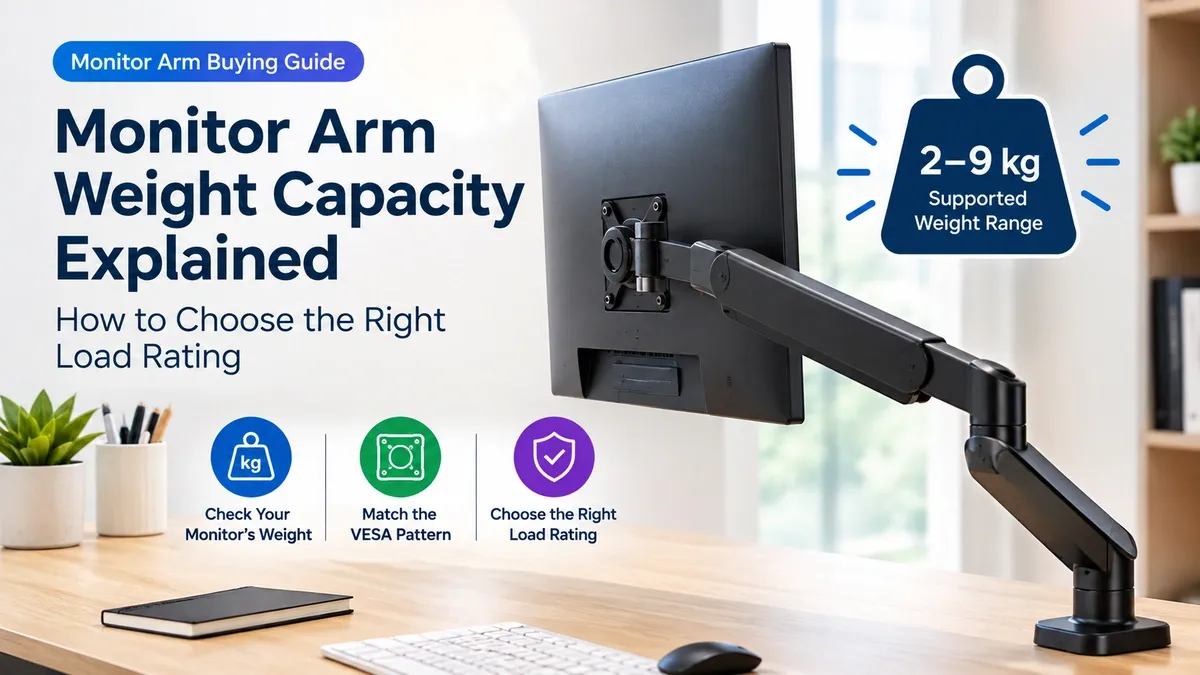
A monitor arm can have the right VESA pattern and still be the wrong choice for your monitor.
Why?
Because VESA compatibility and weight capacity are two different checks.
The VESA pattern tells you whether the monitor can attach to the arm.
The weight rating tells you whether the arm can actually support the monitor properly.
Get either one wrong, and you can end up with a screen that sags, rises when you try to lower it, or simply isn’t suitable for the arm.
Affiliate Disclosure: This post contains affiliate links. If you purchase through our links, we may earn a small commission at no extra cost to you.
What Does Monitor Arm Weight Capacity Mean?
Monitor arm weight capacity is the weight range the arm is designed to support.
You may see a specification such as:
4.4 to 19.8 lb
or:
2 to 9 kg
The important part is that some monitor arms have both a minimum and maximum weight.
This matters particularly with gas-spring arms.
A monitor that is too heavy can cause the arm to sag.
A monitor that is too light can make the arm rise or become difficult to position because the spring is designed to support a heavier load. Fellowes and BenQ both note that monitor arms have specific supported weight ranges rather than simply one universal maximum.
So don’t look only for:
“Supports up to 9 kg.”
Check the full weight range.
How Much Does Your Monitor Actually Weigh?
This is where many buyers make a mistake.
You need the weight of the monitor itself, not the complete package.
Check the manufacturer’s specifications for terms such as:
- Weight without stand
- Monitor weight without stand
- Net weight
- Panel weight
The stand should generally not be included when checking whether the monitor itself falls within the arm’s weight range. Fellowes specifically advises using the monitor weight rather than the stand weight when selecting an arm.
Don’t Use the Shipping Weight
A product listing may show a much higher weight because it includes things such as:
- Packaging
- Stand
- Cables
- Accessories
- Other items in the box
That isn’t the number you want when checking the arm.
Go to the monitor manufacturer’s specifications and look for the weight without the stand.
Here’s a Simple Example
Imagine your monitor weighs:
5.5 kg without the stand
And the monitor arm is rated for:
2 to 9 kg
Your monitor falls inside that range.
So the weight is compatible.
Now imagine another arm is rated for:
6 to 12 kg
Your 5.5 kg monitor is below the minimum.
Even though the arm can technically hold more than 5.5 kg at its upper limit, it isn’t the right match because the monitor is too light for its rated range.
That’s why the minimum weight matters too.
Don’t Confuse Maximum Capacity With the Recommended Range
A specification like:
Up to 9 kg
sounds simple, but it doesn’t tell you everything about how the arm behaves.
For a gas-spring arm, the spring needs to work against the weight of the monitor.
That’s why manufacturers may specify a range rather than only a maximum.
For example, a product could be rated:
2 to 9 kg
That means you should choose a monitor whose weight falls within that range.
The arm isn’t automatically a better choice just because its maximum rating is higher.
Should You Buy an Arm With a Much Higher Weight Rating?
Not necessarily.
This is another common buying mistake.
A heavier-duty arm isn’t automatically better for a lightweight monitor.
BenQ notes that high-capacity arms can exert stronger upward force and that over-specifying the arm can make adjustment harder with lighter displays.
So if your monitor weighs 4 kg, you don’t necessarily need an arm designed to handle 20 kg.
Match the arm to the monitor.
Don’t simply chase the biggest number.
What About Monitor Accessories?
Think about anything that will remain attached to the monitor.
For example:
- Webcam
- Monitor light
- Speakers
- Other mounted accessories
If those accessories are supported by the monitor arm or attached in a way that adds load to the mounting system, they can affect the total weight.
Fellowes notes that additional monitor accessories can need to be considered when checking the arm’s weight limits.
For a simple setup, the monitor itself will usually be the main number to check.
But if you’re adding several accessories, leave some room within the arm’s rated range.
Does Monitor Size Tell You How Much It Weighs?
No.
A larger monitor will often be heavier, but screen size alone isn’t enough to choose an arm.
Two 27-inch monitors can have very different weights.
The same applies to curved monitors and ultrawide displays.
That’s why weight is more useful than screen size when checking the arm’s load rating.
Screen size can still matter because manufacturers often specify both size and weight limits, but don’t use inches as a substitute for the actual weight.
What About Ultrawide Monitors?
This is where you need to pay closer attention.
Large ultrawide monitors can be significantly heavier than standard desktop monitors.
Some heavy-duty monitor arms are specifically designed for large displays.
For example, BenQ’s BSH01 is rated for monitors up to 44 lb and up to 45 inches, with 75×75 mm and 100×100 mm VESA support.
Dell also offers a heavy-duty arm with a 10 to 20 kg load range for larger displays.
So if you’re mounting a large ultrawide, don’t assume a normal single-monitor arm will be enough.
Check the exact model’s weight and the arm’s full specification.
Weight Capacity and VESA Are Separate Checks
This is worth repeating because it’s one of the easiest mistakes to make.
You need to pass both checks.
Check 1: VESA
Does the monitor’s mounting pattern match the arm?
For example:
75×75 mm
or
100×100 mm
Check 2: Weight
Does the monitor’s weight fall within the arm’s supported range?
For example:
2 to 9 kg
A monitor can pass one check and fail the other.
Example
Your monitor:
100×100 VESA
8 kg without stand
Your arm:
75×75 / 100×100 VESA
2 to 6 kg
VESA compatibility is fine.
Weight compatibility is not.
You still shouldn’t use that arm.
What If Your Monitor Is Right at the Limit?
This is where I would avoid cutting it too close.
If your monitor is very close to the arm’s maximum rating, check the manufacturer’s guidance carefully and consider the weight of any accessories that will remain attached.
BenQ recommends leaving some margin around the arm’s stated weight range rather than operating right at the edge.
You don’t need to buy an enormous heavy-duty arm.
You just don’t want your monitor sitting right at the limit if your setup adds extra load.
How to Check Your Monitor’s Weight
Before buying the arm:
Step 1: Find your monitor’s exact model number.
Step 2: Open the manufacturer’s specification page.
Step 3: Find the weight listed without the stand.
Step 4: Note the weight in kg or lb.
Step 5: Check the monitor arm’s minimum and maximum supported weight.
Step 6: Make sure your monitor falls inside that range.
Step 7: Check VESA compatibility separately.
That’s it.
You don’t need to guess from the monitor’s size.
Quick Example: Choosing Between Two Arms
Let’s say your monitor weighs:
6 kg
You are choosing between two arms.
Arm A
Weight range: 2 to 9 kg
Your 6 kg monitor fits.
Arm B
Weight range: 6.5 to 12 kg
Your 6 kg monitor does not fit the stated range.
Even though Arm B has a higher maximum capacity, Arm A is the better match.
This is why maximum capacity alone can be misleading.
What Should You Look For on the Product Page?
When you’re comparing monitor arms, look for these specifications:
Specification | What to Check |
Minimum weight | Your monitor should not be below this |
Maximum weight | Your monitor should not exceed this |
VESA support | Must match your monitor |
Screen size | Must fall within the manufacturer’s stated range |
Accessories | Consider extra weight where applicable |
Arm type | Gas-spring arms may have a specific working range |
If the product page only says “supports up to X kg” and doesn’t clearly state a minimum weight, check the manufacturer’s documentation before buying, especially if your monitor is lightweight.
The Insitelane Check
Before buying a monitor arm, don’t ask only:
“How much weight can it hold?”
Ask:
“Does my monitor fall inside its supported weight range?”
That’s the more useful question.
Then check the VESA pattern separately.
Monitor weight + VESA compatibility = your basic compatibility check.
The Insitelane Take
A monitor arm doesn’t need the highest weight rating you can find.
It needs the right weight range for your monitor.
Check your monitor’s weight without the stand.
Check the arm’s minimum and maximum supported weight.
Then check the VESA pattern.
If all three line up, you’re much less likely to end up with an arm that sags, rises or simply isn’t a good match for your screen.
Don’t buy based on the biggest number on the box. Match the arm to the monitor.
Related Guides
- Best Monitor Arms in India (2026)
- VESA Mount Explained: What 75×75 and 100×100mm Mean
- Best USB Hubs in India (2026) — Picks for Students, Professionals and Power Users
- Best Laptop Stands in India (2026) — Budget, Balanced and Premium Picks
- Best SSDs in India (2026) — Worth Buying Guide
- Desk Essentials That Improve Productivity Without Overspending (India 2026)