
Disclosure: This post contains affiliate links. If you purchase through our links, we may earn a small commission at no extra cost to you.
A drawing tablet lets you create digital artwork, take handwritten notes, edit images and work with design software using a pen instead of a mouse. It connects to a computer or compatible device and translates pen movements into digital input.
You don’t necessarily need an expensive tablet to get started. The right choice depends on the size of the working area, pen pressure sensitivity, shortcut keys, device compatibility and the kind of work you plan to do.
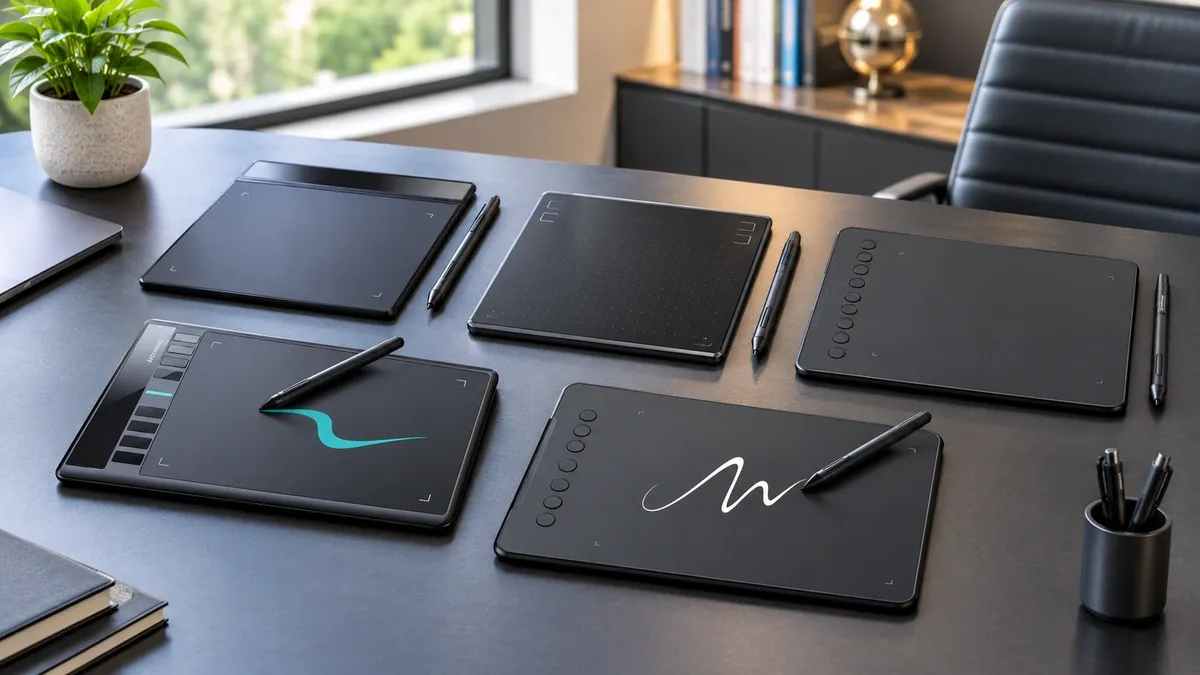
We’ve shortlisted six drawing tablets from XP-Pen and Huion across three categories: budget, balanced and premium. Here’s what each one offers and who should consider it.
What to Look for in a Drawing Tablet
Before choosing a drawing tablet, pay attention to these features:
1. Active Area
The active area is the part of the tablet where the pen detects movement. A larger area gives you more room to draw, while a compact tablet is easier to carry and takes up less desk space.
2. Pressure Sensitivity
Pressure sensitivity determines how the tablet responds when you press the pen harder or lighter. Higher sensitivity levels can provide more control over line thickness and brush effects, depending on the software you use.
3. Battery-Free Pen
A battery-free pen does not need charging or a separate battery. It is convenient for regular drawing, writing and editing.
4. Tilt Support
Tilt support allows compatible software to respond to the angle at which you hold the pen. It can be useful for shading and brush effects, but it is not essential for every user.
5. Shortcut Keys
Programmable keys let you assign frequently used functions such as undo, zoom and brush selection. They can make your workflow quicker.
6. Device Compatibility
Check whether the tablet supports your operating system and whether it can connect to your intended device. Android compatibility, in particular, should be checked against the exact model and connection requirements.
Best Budget Drawing Tablets
If you’re starting with digital drawing, online teaching, handwritten notes or basic image editing, these two models are worth considering.
1. XP-Pen Star G640 – Editor’s Pick
XP-Pen Star G640 is a compact pen tablet with a 6 × 4-inch active area. It offers 8,192 pressure sensitivity levels and comes with a battery-free P01 passive pen.
Its slim 2mm profile makes it easy to carry, while support for both right- and left-handed users adds flexibility.
Key Specifications
- Active Area: 6 × 4 inches
- Pressure Sensitivity: 8,192 levels
- Pen: P01 passive, battery-free stylus
- Resolution: 5,080 LPI
- Reading Height: 10mm
- Thickness: 2mm
- Left- and right-hand use supported
Who should buy it?
The Star G640 is a sensible starting point for beginners who want a compact drawing tablet for sketching, basic digital artwork, writing and everyday creative tasks.
2. Huion HS64 – Budget Runner-up
The Huion HS64 offers a slightly larger 6.3 × 4-inch working area than the Star G640. It has 8,192 pressure sensitivity levels, a battery-free PW100 pen and four programmable press keys.
It also supports Android devices, alongside Windows, macOS and Linux. Check the connection requirements before buying if you plan to use it with a phone or tablet.
Key Specifications
- Working Area: 160 × 102mm (approximately 6.3 × 4 inches)
- Pressure Sensitivity: 8,192 levels
- Pen: PW100 battery-free electromagnetic resonance pen
- Pen Resolution: 5,080 LPI
- Report Rate: More than 233 PPS
- Sensing Height: 10mm
- Express Keys: 4 programmable press keys
- Interface: Micro USB
- Dimensions: 200 × 166 × 8mm
- Weight: 258g
- Compatibility: Windows 7 or later, macOS 10.12 or later, Android 6.0 or later and Linux
Who should buy it?
Choose the HS64 if you want a compact tablet with four programmable keys and Android support. Its working area is also marginally larger than the Star G640.
Best Balanced Drawing Tablets
These options offer more working space and additional controls for users who draw or work on creative projects more regularly.
1. XP-Pen Deco Mini7 V2 – Editor’s Pick
The Deco Mini7 V2 is a compact tablet with a 7 × 4.37-inch active area, 16,384 pressure sensitivity levels and eight shortcut keys.
Its battery-free stylus supports up to 60 degrees of tilt, making it useful for compatible shading and brush effects. It also supports USB-C connectivity and a broad range of operating systems.
Key Specifications
- Active Area: 7 × 4.37 inches
- Pressure Sensitivity: 16,384 levels
- Pen: Battery-free stylus
- Tilt Support: 60 degrees
- Shortcut Keys: 8
- Resolution: 5,080 LPI
- Report Rate: 220 RPS (maximum)
- Reading Height: 10mm
- Interface: USB-C
- Dimensions: 260.2 × 162.2 × 9.3mm
- Weight: 307g
- Compatibility: Windows 7 or later, macOS 10.12 or later, Linux, Android 10.0 or later and Chrome OS 88 or later
Who should buy it?
The Deco Mini7 V2 is a good fit for users who want more working space, additional shortcut keys and tilt support without moving to a larger tablet.
2. XP-Pen Star 03 V2 – Balanced Runner-up
The Star 03 V2 takes a different approach. Instead of a compact design, it provides a larger 10 × 6-inch working area, giving users more room for drawing and digital artwork.
It has 8,192 pressure sensitivity levels, a battery-free P01 stylus and eight shortcut keys. The larger working area can be useful for users who prefer broader hand movements while drawing.
Key Specifications
- Active Area: 10 × 6 inches
- Pressure Sensitivity: 8,192 levels
- Pen: P01 battery-free stylus
- Report Rate: 266 RPS
- Shortcut Keys: 8
- Resolution: 5,080 LPI
- Reading Height: 10mm
- Compatibility: Windows 7 or later, macOS 10.10 or later, Linux and Chrome OS 88 or later
Who should buy it?
Consider the Star 03 V2 if working space matters more to you than having higher pressure sensitivity. Its larger active area makes it a useful alternative to the more compact Deco Mini7 V2.
Best Premium Drawing Tablet
1. XP-Pen Deco 01 V3 – Editor’s Pick
The Deco 01 V3 offers a 10 × 6.25-inch active area, 16,384 pressure sensitivity levels and eight customizable express keys.
Its battery-free stylus supports up to 60 degrees of tilt, which can help with shading and brush effects in compatible applications. The tablet also supports several operating systems, including Windows, macOS, Android, Chrome OS and Linux.
Key Specifications
- Active Area: 10 × 6.25 inches
- Pressure Sensitivity: 16,384 levels
- Pen: Battery-free stylus
- Tilt Support: 60 degrees
- Express Keys: 8 customizable keys
- Resolution: 5,080 LPI
- Report Rate: 220 RPS (maximum)
- Reading Height: 10mm
- Thickness: 8mm
- Compatibility: Windows 7 or later, macOS 10.13 or later, Android 10.0 or later, Chrome OS 88 or later and supported Linux versions
Who should buy it?
The Deco 01 V3 is suited to users who want a larger working area, higher pressure sensitivity and tilt support. It is the most feature-rich option in this shortlist for users who expect to spend more time on digital drawing and creative work.
Quick Comparison: Drawing Tablets at a Glance
Model | Active Area | Pressure Sensitivity | Shortcut Keys | Tilt Support |
XP-Pen Star G640 | 6 × 4 in | 8,192 | Not specified | 60° |
Huion HS64 | 6.3 × 4 in | 8,192 | 4 customisable press keys | 60° |
XP-Pen Deco Mini7 V2 | 7 × 4.37 in | 16,384 | 8 customisable hotkeys + 1 switch toggle on stylus | 60° |
XP-Pen Star 03 V2 | 10 × 6 in | 8,192 | 8 customisable keys on tablet | 60° |
XP-Pen Deco 01 V3 | 10 × 6.25 in | 16,384 | 8 customisable shortcut buttons | 60° |
Specifications are based on manufacturer information.
Which Drawing Tablet Should You Buy?
Your choice should depend on how you plan to use the tablet.
- For beginners: The XP-Pen Star G640 is a straightforward entry point for basic drawing, writing and digital input.
- For android users: The Huion HS64 is worth considering if you want a compact tablet with Android compatibility.
- For a compact tablet with more controls: The XP-Pen Deco Mini7 V2 offers a good combination of working area, pressure sensitivity and shortcut keys.
- For a larger working area: The XP-Pen Star 03 V2 gives you more room to draw.
- For more advanced creative work: The XP-Pen Deco 01 V3 combines a large active area with higher pressure sensitivity and tilt support.
Remember that pressure sensitivity alone does not determine drawing quality. Your software, pen control, working area and familiarity with the tablet all matter.
Final Word
A drawing tablet does not need to be expensive to be useful. Beginners can start with a compact model, while regular digital artists may benefit from a larger working area and more shortcut controls.
Before placing an order, confirm the exact model and operating-system compatibility on the product listing. Also check the included accessories and warranty terms, as these can vary by seller and region.
Choose the tablet that fits your actual workflow rather than paying for features you may never use.